

Welcome back to the AI Edge weekly newsletter!
This week, we’re covering 6 things that you should STOP doing - and let AI handle instead.
These aren't niche workflows - these are things literally everyone does every week, and we're going to show you the exact AI alternative for each manual task (+ how to quickly set it up if applicable).
By the end of this issue, you'll have reclaimed several hours of your valuable time and know the exact steps to automate a couple of real workflows.
After our main anchor piece, be sure to stick around for the Midweek Edge, where we recap the top AI news from the past week, and our Looking Ahead section, where we break down top AI trends & research.
Enjoy!
#6: Media Transcription (all types)
If you’re still manually taking notes on your calls, videos, and other media sources, you’re wasting a ton of time per week.
This could include work meetings, YouTube and Loom videos, and any other form of media where you’re actively taking notes.
These two AI media tools could buy back 5+ hours/week on their own:
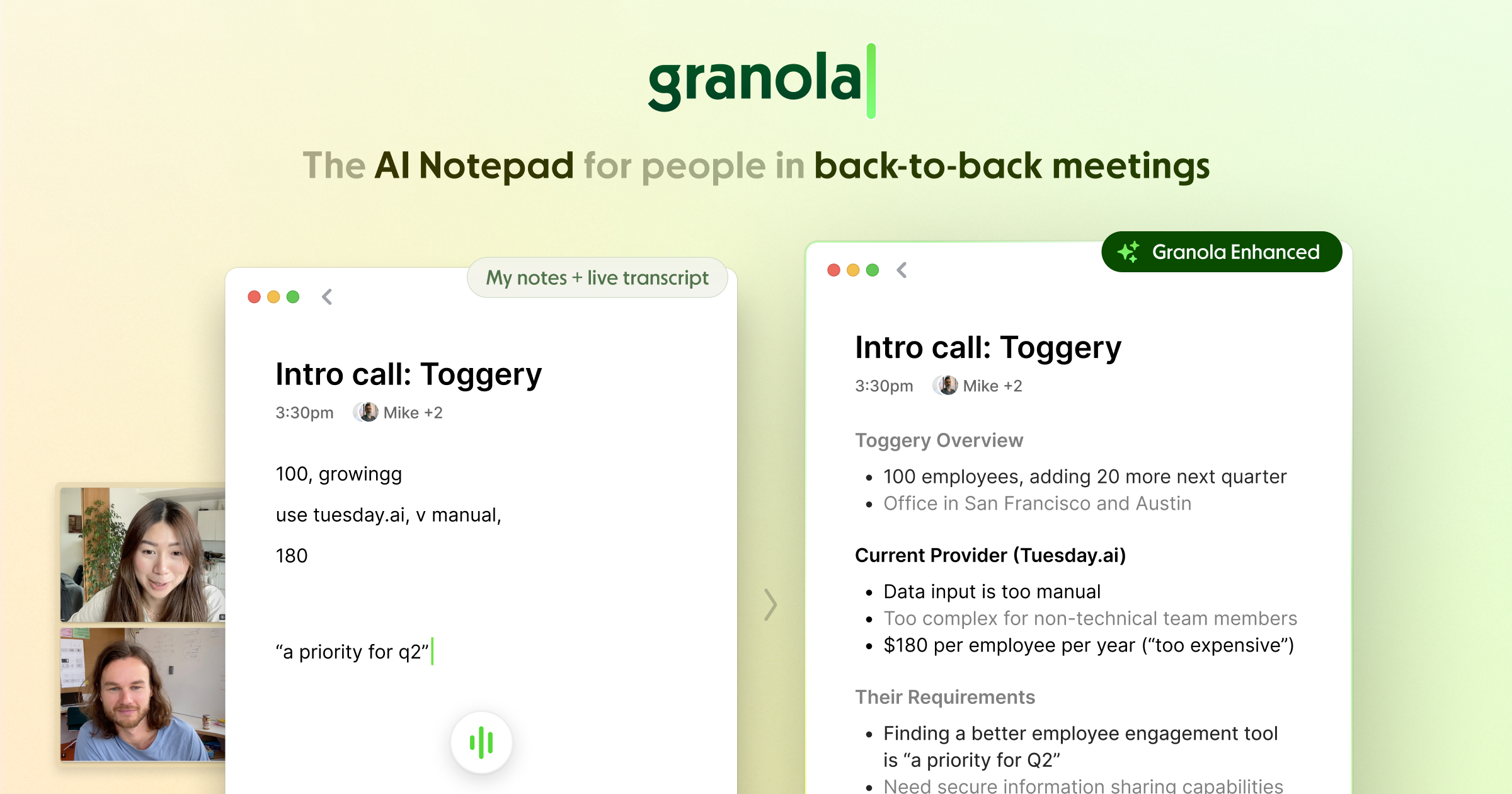
Granola - All audio transcribing

For audio summaries, meeting notes, and transcriptions, we like Granola - it’s a simple plug-and-play AI tool that has a very minimalistic feel.
To get started, you’ll want to make an account, and Granola will automatically transcribe anytime it detects your microphone coming on (work calls, normal phone calls, etc.)
Gemini - YouTube & video transcribing

This is a complete game-changer for those of you who watch a lot of YouTube.
Most people don’t know that you can open Gemini and send prompts like:
“Summarize and take notes on this entire video [insert link].”
Not only will this save you a ton of time on manual note-taking for YouTube videos, but you can also use those notes to create assets (e.g., turn [x] YouTube video into a mind map).
Huge time saver, and if you’re not already leveraging AI in your daily media usage/consumption, start with these two tools.
#5: Spreadsheet Work
Ok - this might be the heaviest-hitter on our entire list.
Stop doing Google Sheet/Excel work manually - use AI instead.
You have a few options for using AI to complete spreadsheet work.
ShortcutAI


For those of you using Excel, we recommend testing ShortcutAI.
It’s the easiest way to get AI to complete real work inside your spreadsheet on your behalf.
You can start a free trial here:

Gemini in Sheets
For those of you relying on Google Sheets, we recommend Gemini. It’s built into the Google ecosystem & is hands-down the easiest way to use AI in Sheets.
Every time you open a sheet, Gemini will appear on the right to assist (available only with Google paid AI plans).

Claude in Sheets/Excel

Lastly, you can use Claude in Sheets and Excel.
Go to “Extensions” and click “add-on” from there, and you’ll be able to connect your Anthropic API key to allow Claude to work on your spreadsheets in real time.

#4: Financial Research
Using these tools could not only save you time but also a ton of money.
Since AI excels at pattern recognition, one of its best use cases is in financial and data research.
You can use AI to maximize your portfolio, make financial suggestions, search housing prices, and much more.
We have two favorite tools/workflows here:
Perplexity Finance


With Finance, you can scan the markets in seconds, create watchlist alerts, link your brokerages, and more.
For those of you into financial markets, using this tool is a must.
Getting started is simple: just make an account with Perplexity here and start prompting in the “Finance” tab.

Claude + Cowork for Finance

Secondly, you can use a combination of Claude + Cowork for deep portfolio and financial research.
Using Claude for automated finance research includes building a personal financial memory database, investor profile, and more, which allows Claude to give you tailored financial suggestions (not AI slop).
If you’re interested in Claude for Finance, Miles recently broke down his step-by-step guide here:

#3: Email Management
Everyone should do this, and it only takes ~5 minutes to set up.
With an MCP connection, you can connect an AI to your Gmail and allow the AI agent to autonomously manage your emails.
No more spam alerts, manually cleaning out your inbox, or responding to messages.
Here are the exact steps to set this up:
Open ManusAI

2. Open “Connectors” in Settings

3. Connect Gmail

4. Scheduled Tasks

Once connected, you’ll be able to set up scheduled tasks and send prompts like “scan my inbox every 24 hours and give me a detailed brief…”
The possibilities are endless with this workflow - but this will get you started.


#2: Writing
If you spend a lot of time writing, you’ll love this workflow.
In just a few seconds, you can create a custom Claude skill that automates all your writing tasks (no AI slop - actually sounds like you and is usable!)
To clone your writing voice, follow these steps:
Open Claude

2. Insert this prompt:

"I want to create a custom writing Skill that actually sounds like me. Here is all my context [insert emails, texts, and any written content]. Use this to create the Skill and if you need anything else, ask me. Once done, send me some writing samples so I can critique them and we can create new versions of the skill if needed. Upload Context
Next, you’ll want to create a mini-swipe file of all your writing context so that Claude knows how to train the Skill (insert it into the bracketed portion of the prompt above).
This could be: emails, text messages, and any other written context that you have.
Iterate
Claude will then return some sample texts for you to review.
Actively critique Claude and make edits as needed.
Your final product should be a usable Claude Skill for emails, responses, and any other repetitive writing tasks that take up your time.

#1: Admin Work
Lastly, everyone should be using AI for their daily “admin” work.
Things like: calendar scheduling, to-do list management, desktop file management, and similar tasks.
To turn Claude into your personal admin assistant, follow these steps:
Create a new Claude Project

Settings → Connectors

Head to your Claude settings, and connect ALL your admin tools.


Tools like: Notion, Google Calendar, Google Drive, Slack, etc. - all your daily drivers
New Chat
Start a new chat and tell Claude, “You are my daily admin chat - use my connectors to complete tasks on my behalf in my work tools.”
Start Prompting
From here, start sending admin tasks to Claude
Things like:
“Add [x] to my Notion to-do list.”
“Read all my Slack messages.”
“Extract [x] info from [x] doc in my Google Drive.”
There you have it.
The six workflows you should STOP doing manually and hand off to AI instead - we hope you try a couple out!
Now, let’s jump into the Midweek Edge - our manually curated list of only the most important AI updates to ensure you stay up to speed.

🚨 Anthropic x SpaceX Partnership🚨

Your Claude usage limits just DOUBLED because of this deal.
Anthropic recently partnered with SpaceX to access 200,000+ NVIDIA GPUs and AI compute power.
Enjoy your updated Claude rate limits!
🚨/goal in Claude Code & Codex🚨
Both OpenAI and Anthropic recently announced “/goal” - a loop that allows your AI to work for days with zero manual intervention.
To deploy these agent loops, open your preferred AI tool in your terminal, and type “/goal’ to tell your agents to start working towards a goal without stopping.

🚨GoogleBook Announced (AI-powered laptop)🚨
Google announces “GoogleBook,” its Gemini-powered laptop, set to launch in Fall 2026.
Watch the demo video here:
🚨Grok Skills LIVE now🚨
Grok now has “Skills” - similar to Claude Skills, except you can pull from real-time data on X.
Useful for those of you who use Grok often or live on X.

🚨Krea 2 is LIVE now🚨
One of the best image models available right now (best for art, creative work).
Access it here:

Looking Ahead - The top AI trends, leaks, and news we’re closely monitoring.

👀 Google I/O LEAK: Google Omni 👀
Google Omni is likely going to be released within the next week (at Google I/O).
If true, it will likely be the world's most powerful AI video model.
Remix, edit, and create videos with multimodal AI capabilities.
Expect this soon!
👀/goal Mega Prompt 👀
The BEST way to use the new /goal command in Claude Code & Codex:

👀 SpaceX IPO Update 👀
SpaceX S-1 Filing Expected Late May, IPO Roadshow Week of June 8 (speculation).
👀Google I/O Start Date👀
Google I/O is set to begin May 19th.
Be on the lookout for a TON of new AI tools/features from Google (including Omni video model)!
Final Thoughts
If you made it this far, thank you for reading, and we hope you found this week’s edition valuable.
If you did, please share this with someone who you think would benefit from our publication.💙 Our promise to you: Every Wednesday, at 7 am EST, we’ll cut through the AI noise and send you human-curated AI content, tool guides, workflows, and more to make sure you stay ahead of the AI curve - straight to your inbox and 100% free. |
Recent & upcoming content:
YouTube Content
Live Now: “I Replaced My Financial Advisor with Claude (Full tutorial)”
X (Twitter) Content
Live Now: “ .MD (Markdown) Files for AI - The Ultimate Guide”
Upcoming Content: “/goal - Ultimate Guide” (live in a few hours!)
Instagram Community & Free AI assets
Live Now: Full PDF Playbook for using Claude for finance (+ more)
For all the AI prompts, cheatsheets, and PDF guides mentioned on the AI Edge YouTube channel, grab them by joining Miles’ free Instagram community here: |